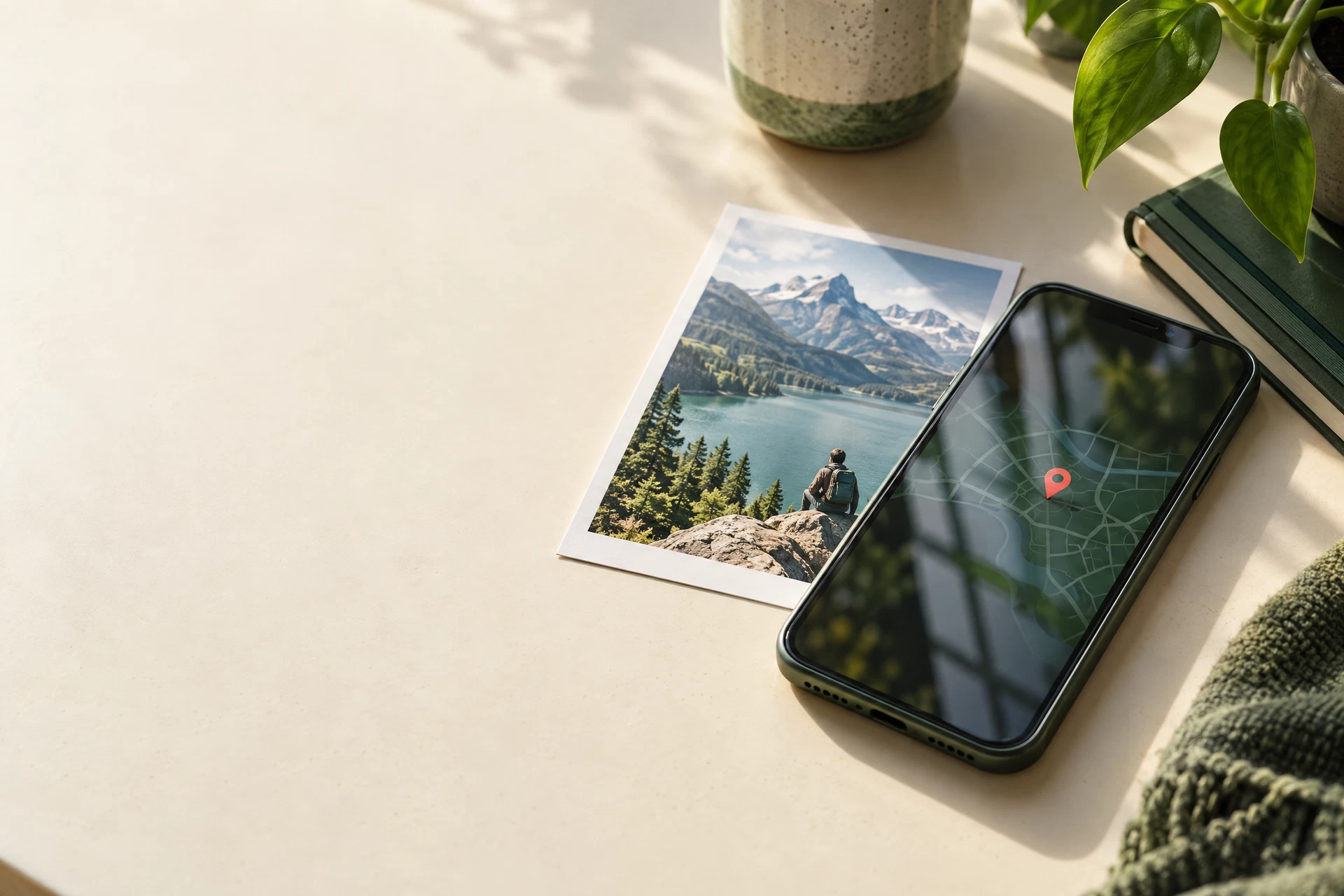
Most of us think of a photo as the picture we can see. Our phones see a little more. Alongside the sky, the people, and the coffee shop window, a file may carry the place where it was taken.
That does not make every photo dangerous. It does mean that a picture taken at home, a child’s school, or a friend’s apartment can sometimes reveal more than you meant to send.
The first useful habit is simple: pause before you share. Open the photo’s details panel or run it through a local metadata checker. Look specifically for GPS coordinates, a map preview, or a location name. On some phones, the location is easy to spot; on others it is tucked behind an information button.
If location is present, make a copy before cleaning anything. The original can still be useful for your own library, travel memories, or future editing. A cleaned copy is the one to attach to a marketplace listing, send to someone you do not know well, or post publicly.
It is also worth checking the image after cleaning. A “remove location” button is a helpful step, not a magic guarantee. Some apps create a new file while leaving the original untouched; others export a new version with a different set of fields. Compare the before and after details when you can.
Finally, remember that the picture itself can reveal a place even when the file has no GPS. A street sign, house number, school uniform, distinctive view, or reflection may identify the location visually. Metadata privacy and ordinary visual privacy work best together: remove what the file knows, then look at what the image says.
Keep the check local: Inspect a photo before you share it ↗